Changing Alert Definition Thresholds in VCF Operations Policies

We discussed VCF Operations Policies a couple years ago, but I'd like to highlight a couple use cases in more detail here. Policies are very powerful, they control several things:
Metrics and Properties that are being collected (or not)
Alerts and Symptoms that are enabled (or not)
Capacity Settings and Thresholds
Pricing Base Settings and more...
I'm running VCF Operations 9 (which I've upgraded from 8.18.4, all screenshots here are from VCF Operations 9. Go to Infrastructure Operations - Configurations - Policies and you'll find the Policy Definition tile.

Selecting Policy Definition will give you a list of your Policies.
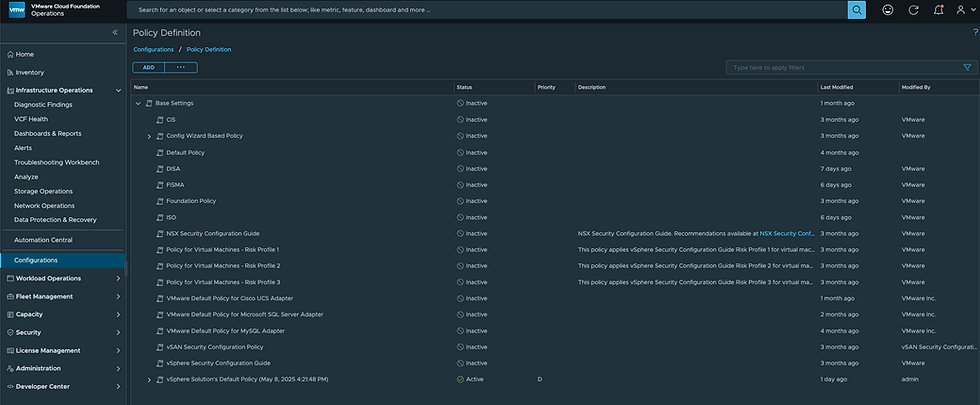
As you can see, the vSphere Solutions Default Policy is Active and the Default Policy (Priority D). Keep in mind as you add Policies, the Default Policy is the last Policy checked, it is the catch all Policy.
If you'd like to make changes (turn on/off metrics, turn on/off Alerts, etc) the best practice is to Clone the vSphere Solution's Default Policy and make changes in this new Policy. Reason being, the vSphere Solution's Default Policy gets overwritten at upgrade time, so any changes you've made there will be lost. That said, let's create a new Policy where I'd like to make some Alert Definition Adjustments. Click the ADD button at the top.

Give it a name, description, and tell it to Inherit from the vSphere Solution's Default Policy, and click CREATE POLICY.

We now have our own Policy we can make adjustments to that won't be lost at upgrade time. Now if we want to make an adjustment to Alerts and Symptoms in this Policy we click that tile.

As indicated, there are no Alert Definitions defined locally in this policy. But say for example you wanted to adjust the VM Disk Read/Write Latency Alert Definitions, you would select Virtual Machine from the Select Object Type dropdown and search for the Alert Definitions.

What this tells us is that there are two Alert Definitions related to VM Disk Latency (ignore the one at the top) and that both of them are Active and their definitions are being inherited from the vSphere Solution's Default Policy. Selecting one of them will provide us with the details of the Alert Definition.

Now, if we want to adjust these thresholds we can do that here. Let's adjust the Read Latency metric to something much higher to minimize any noise.

Once done click SAVE.

You'll now notice there is a single locally defined Alert Definition in our new Policy. Clicking on that tile again to see the details will show us this.

Clicking the Alert Definition that we just changed, which shows as Activated (notice it's no longer Activated/Inherited), shows the following.

Notice these are the new thresholds we defined, which are locally defined in this new Policy. Now to activate this Policy we need to add a Group (or Objects) in the Groups and Objects tile bottom right.

Select the Groups and Objects tile bottom right.

This is where you tell the Policy what Groups or Objects to apply to. You can select an existing Custom Group if you'd like or you can tell it what Objects to apply to. I'd like to apply this new Alert Definition to all VMs in my environment, so let's create a Custom Group for them. Go to Infrastructure Operations - Configurations - Logical Groupings - Custom Groups and create your Custom Group.

Click ADD.

Give it a name, description, type, assign it to your new Policy, and check the box to Keep group membership up to date. This will ensure any new VMs added to your environment get put in this Custom Group. Click NEXT.

Select Virtual Machine from the dropdown, which tells the Custom Group to include all VMs. You can click PREVIEW bottom right to confirm the Custom Group includes everything you think it should.

Click NEXT and NEXT and CREATE on step 4.

Back on the Custom Groups page you'll see your new Custom Group. Note that it can take up to 20m for the Custom Group to be populated with its members. Now back in the Policies page, looking at my new Policy I can see that the new Custom Groups has been applied.
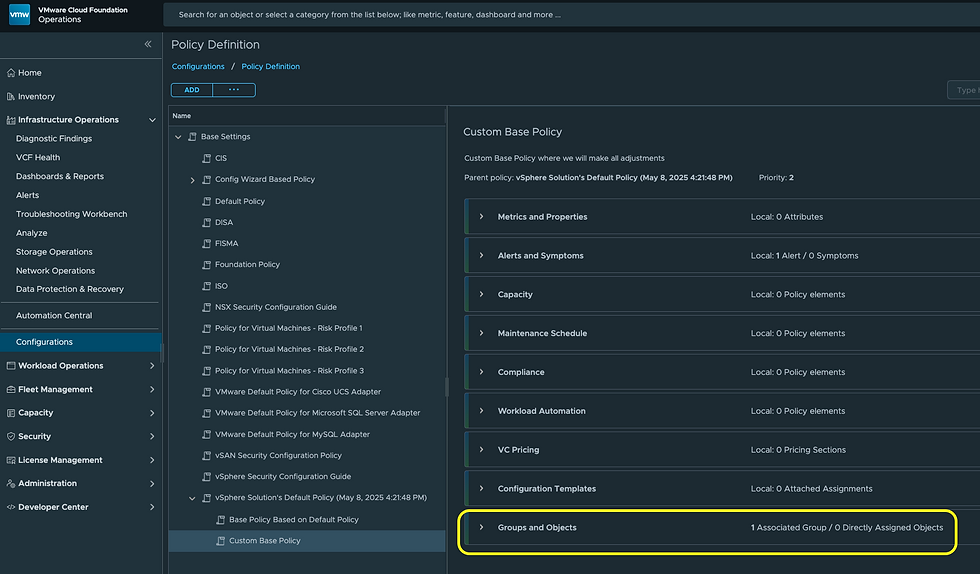
Clicking EDIT POLICY top right, then selecting the Groups and Objects tile shows us the details.

Notice the All VMs Custom Group has our 51 VMs in it. We've now successfully adjusted the Disk Read Latency Alert Definition thresholds for all VMs in our environment. You can do this same thing for any Alert Definition you'd like.
VCF Operations Policies are very powerful and with that power comes a bit of complexity. Just keep in mind, you always want your own Default Policy where you make changes. Enjoy!


Comments