Fresh Deploy of Aria Operations 8.18.3

Updated: Aug 22, 2025
It's been a while since I freshly deployed Aria Operations, so let's see what it looks like with Operations 8.18.3. For the record, I downloaded it here.

Once downloaded, I deployed directly from vCenter, powered on the VM and here we go.

Click NEW INSTALLATION.

Set the admin password.

Use the default self-signed certificate or provide your own. I'll take the default and adjust later if necessary.

Give it an NTP server.

I won't be using HA or CA, so will take the default here.

No Nodes to add here, so taking the default.

Click NEXT.

Click FINISH and you'll be taken to the Admin System Status page.

Click BRING CLUSTER ONLINE.

Click YES and watch the Cluster come online.

It took about 5m and we're online.

Once done you can log into the regular UI at https://your_ops_fqdn/ui with the admin credentials you configured at deployment time.

Click NEXT and accept the EULA.

Add your Product Key or take the Evaluation, which will give you 60 days.

Click NEXT.

You can opt out of this in Administration - Global Settings later.

Click FINISH and it'll take you into Operations!

You'll notice at the top I'm using an Evaluation License, digging into the details shows it will expire 7.7.2025, 60 days from now.

Next let's configure our vCenter Adapter Instance/s which you can do via Home - Overview - ADD ACCOUNT - vCenter.
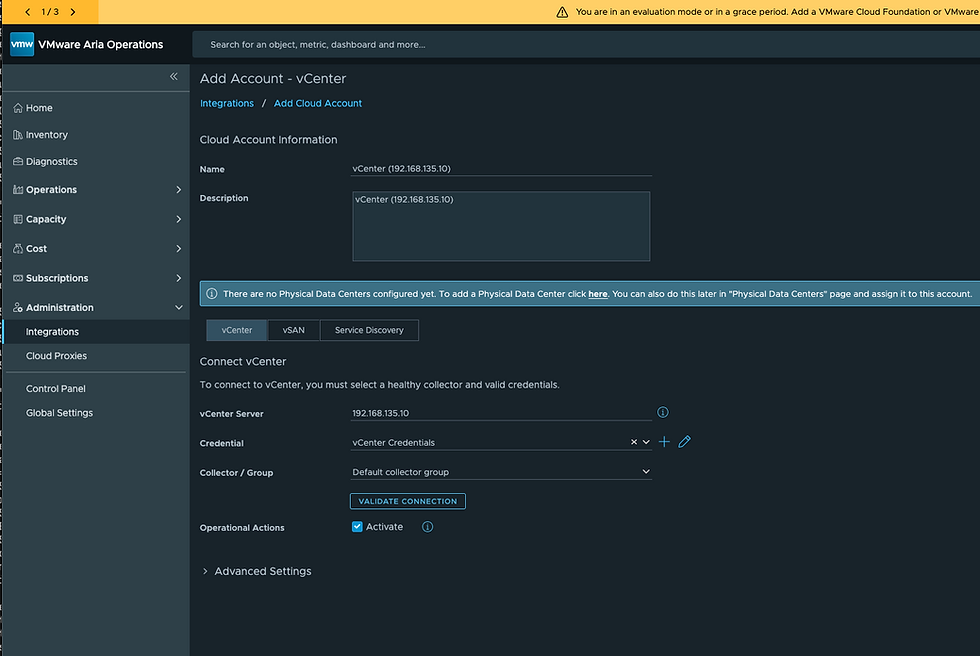
Click VALIDATE CONNECTION to confirm your connectivity and accept the certificate.

Click ACCEPT.

We are in! You can optionally enable the vSAN adapter instance as well.

Again, validate connectivity with the VALIDATE CONNECTION button.
You can also enable Service Discovery on the Service Discovery tab if you'd like.
Once your vCenter adapter instances are configured you can add physical locations for your vCenters via Control Panel - Physical Datacenters - ADD.

Now back on the Home - Overview page you'll notice the map has been populated, the Inventory is starting to see objects, and metrics are starting to be collected. Give it some time to collect metrics, make relationships, and more. In the meantime, we can do a few things.
You'll want to set your currency via Administration - Global Settings - Cost/Price.

Once set it can't be changed so be certain you've selected the currency that best fits your user base. I have a feature request open to allow for the adjustment of this.
You can also opt-out of the CEIM program via Administration - Global Settings - System Settings if you'd like.

Back in the Admin UI (https://your_ops_fqdn_here), you'll want to enable SSH in case you need to SSH into the Operations Cluster VM/s.

You can SSH in with the admin credentials you configured earlier.

Now to set the root password you'll have to use the vCenter Web Console.

Click LAUNCH WEB CONSOLE.

Hit enter on Login and you'll be given a prompt to login, provide root and hit enter.

Much more we can do here, but this should get you started, enjoy!


Comments