Two-Phase Aria Automation 8.18.1 Deployment

When downloading the Aria Suite Lifecycle Easy Installer for Aria Automation recently I noticed Aria Automation has an OVA.

I've only ever installed Aria Automation via the ASLCM Easy Installer, but this OVA implies I could do it stand alone, so I started looking around. And sure enough, as part of the ASLCM Easy Installer, you can actually skip the Automation deployment and just install ASLCM and vIDM. For that matter, you can also skip the vIDM deployment from the ASLCM Easy Installer, but you'll then also be forced to skip the Aria Automation deployment as well.

So I checked this "Skip VMware Aria Automation installation" box and proceeded on with my deployment. Once done, I had an ASLCM and vIDM environment. I then downloaded the Aria Automation OVA shown above and deployed it directly from vCenter. The deployment was fine, but Aria Automation wasn't able to start because it didn't know about vIDM. To make it vIDM aware I ran the following commands via the commandline:
vracli vidm set https://vidm-bpeterson.vcfops.lab admin configadmin, to tell Automation about vIDM
vracli vidm apply, to apply the setting
/opt/scripts/deploy.sh, to start Aria Automation (this took about 20m or so)
Once done, I got this message.

I then confirmed I could log into the Aria Automation UI.

Next I created an ASLCM environment and imported this new Aria Automation deployment (and Operations and Logs), so I could apply subsequent patches.

Click NEXT and tell it what products you want to import.
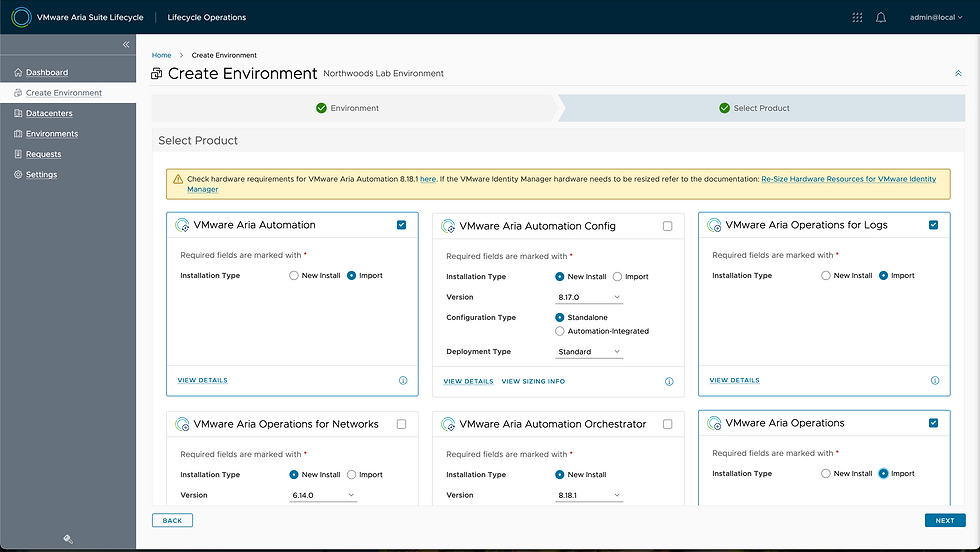
Click NEXT and provide details of each environment.
Review and click SUBMIT.

You can now follow along via Requests.
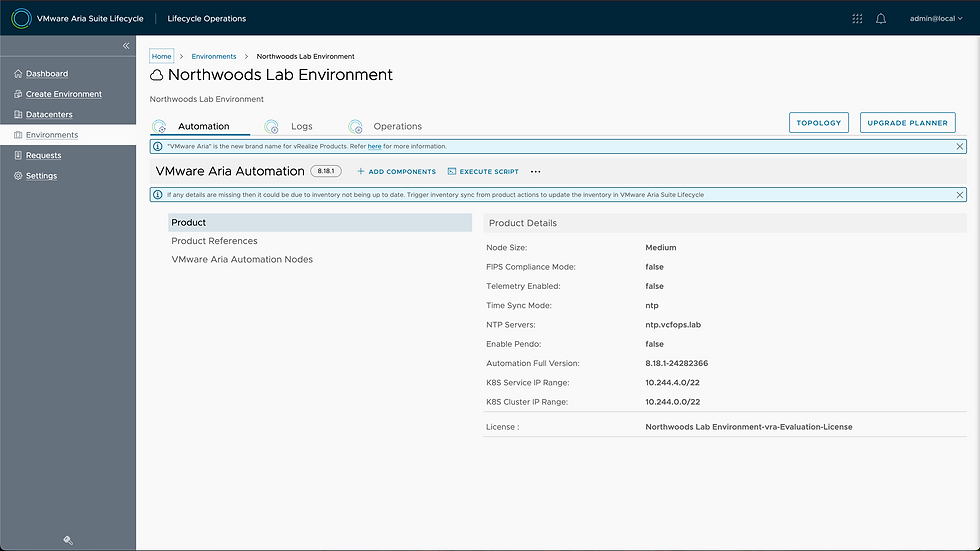
Now you have your new environment, including the Aria Automation instance you deployed via OVA.

Which looks like this.
I love discovering new ways to do things, enjoy!


Comments