Adding Tags to your VMs in VCF Automation Blueprints

I've created various Blueprints in my VCF Automation environment, addressing different customer demands.

I'd like users deploying VMs via the Generic VM Blueprint to add vSphere Tags to their deployments, this is what I did. All screenshots in this blog are taken from VCFA 8.18.1.
I'll be including code snippets below, but if you'd like to have the full Bluepring, you can download it here.
First, I ask the user for several inputs: VM Name, vCPU, Memory, OS, IP, etc.
inputs:
vmname:
type: string
description: VM Name (shortname)
title: VM Name (shortname)
vcpuCount:
type: integer
description: Number of vCPUs
title: vCPU being requested
default: 2
minimum: 2
maximum: 32
totalMemoryMB:
type: integer
description: Memory in MB
title: Memory being requested (MB)
default: 4096
minimum: 4096
maximum: 32768
enum:
- 4096
- 8192
- 12288
- 16384
- 20480
- 24576
- 28672
- 32768
os:
type: string
description: OS
title: OS for VM
default: Windows 2022
enum:
- CentOS Linux 7
- CentOS Linux 8
- Debian Linux 12
- Oracle Linux 9
- RHEL 7
- Rocky Linux 9
- Windows 2022
- Windows 2025
ip:
type: string
description: IP of VM
title: IP of VM
I then ask the user for metadata: VM Owner, Category, and Description. I will use these to create VM Tags.
owner:
type: string
description: Owner of VM (please use email address)
title: Owner of VM (please use email address)
category:
type: string
description: Category of VM
title: Category of VM
default: TEST
enum:
- TEST
- DEVELOPMENT
- PRODUCTION
description:
type: string
description: Description of the VM
title: Description of the VM
Once I have these inputs from the user, I use them in my VM object via properties - tags, like this.
Cloud_vSphere_Machine_1:
type: Cloud.vSphere.Machine
properties:
image: ${input.os}
cpuCount: ${input.vcpuCount}
totalMemoryMB: ${input.totalMemoryMB}
name: ${input.vmname}
tags:
- key: owner
value: ${input.owner}
- key: environment
value: ${input.category}
- key: description
value: ${input.description}
constraints:
- tag: account:alderstead.vcfops.lab / Datacenter-1
networks:
- network: ${resource.Cloud_Network_1.id}
assignment: static
ip_addresses: ${input.ip}
I've also skinned this Blueprint with a Custom Form that looks like this.

If you'd like this Custom Form you can download it here. As you can see I added some helper text, used Regular Expression Constraints to ensure users enter properly formed data, and Text Area to allow for free-form content. Let's give it a run.

The last three fields are the ones that will be used to create VM Tags. Once the form is complete, click SUBMIT.

We can watch our progress here, but also over in vCenter.
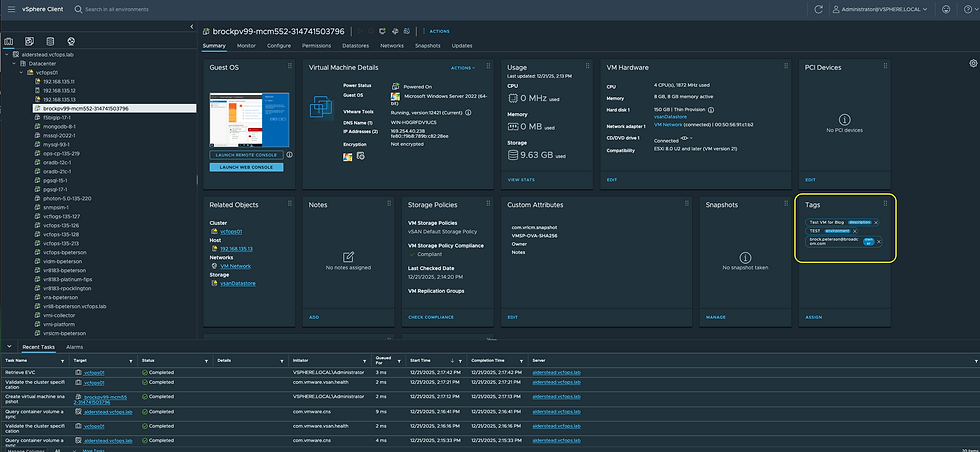
There's our VM with the Tags we specified at request time! Tags can be used for all sorts of use cases, hope this was helpful!


Comments