VCF Automation 9 VM Apps Organization

In one of my labs I only have a vCenter, VCF Operations, and Fleet Manager, but still wanted to deploy VCF Automation, here's what I did.
First I configured my Fleet Manager Depot, in this case I'm using an Online Depot.
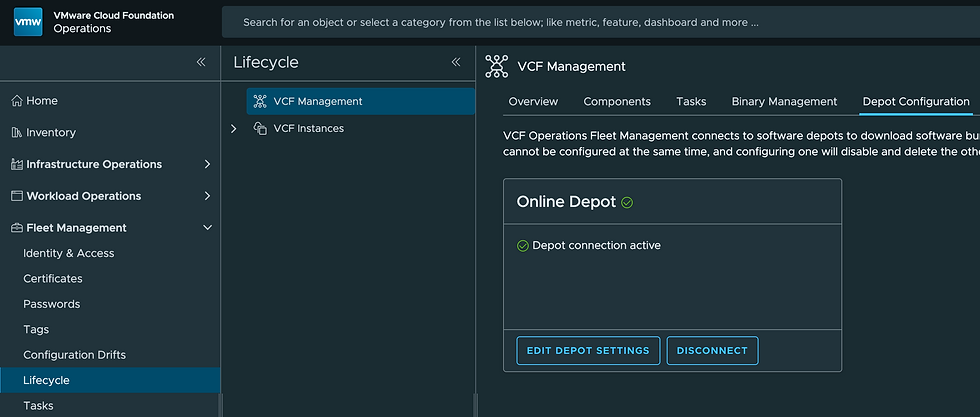
I then downloaded the VCFA 9 Install Binaries.

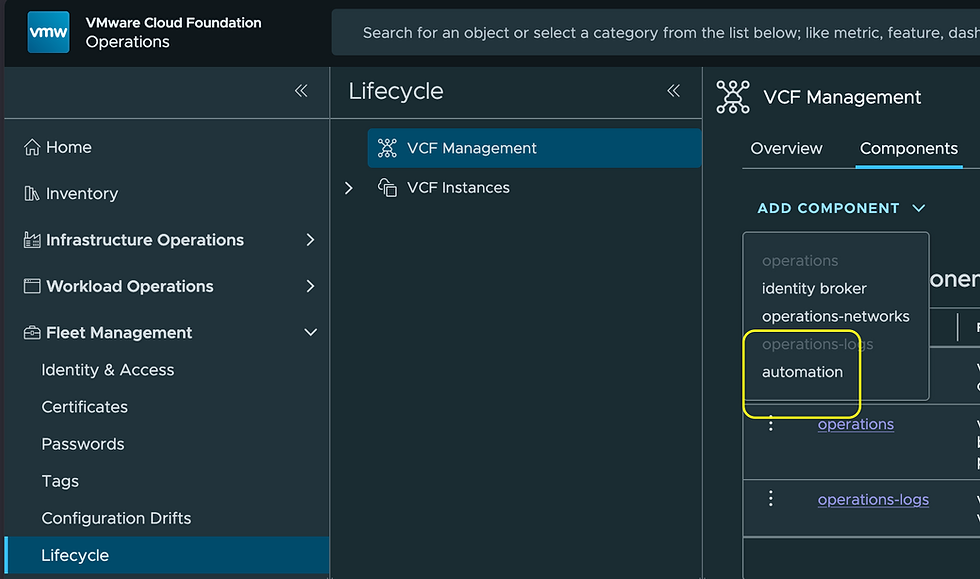
Next I added the VCF Automation Component.

I went with a Small New Install of VCFA 9.0.0.0.

I won't go through the entire workflow here, but this is where you'll do the following:
Create your Certificate
Select the Infrastructure you'll deploy onto
Provide Network settings
Supply VCFA IPs and FQDN
Run Pre-Check
Once ready I started the deployment which took several hours.

You'll notice it failed Stage 14 (configuration of the SDDC Manager endpoint), which makes sense as in this lab I don't have an SDDC Manager.
VCFA9 is now up and running and available at the IP/FQDN provided at build time.

As you're likely aware, VCFA 9 has a Provider Portal, which I think of as the Administrator Portal. The Organization Name for it is system. Let's log into it.
Upon login you'll get this.

VCFA 9 offers two types of Organizations:
All Apps Organization on the left requires vSphere Supervisor Services which can be enabled by clicking the ENABLE SUPERVISOR IN OPS box.
VM Apps Organization on the right is the traditional vRA experience and doesn't require vSphere Supervisor Services, NSX, etc.
We'll select the CONTINUE TO VCF AUTOMATION box to enable the VM Apps Org.

Select Feature Flags lower left and enable Classic Tenant Creation (this is disabled by default). Then go to Organizations top left to create the VM Apps Org.
Click CREATE ORGANIZATION then select the Organization for VM Apps radio button.
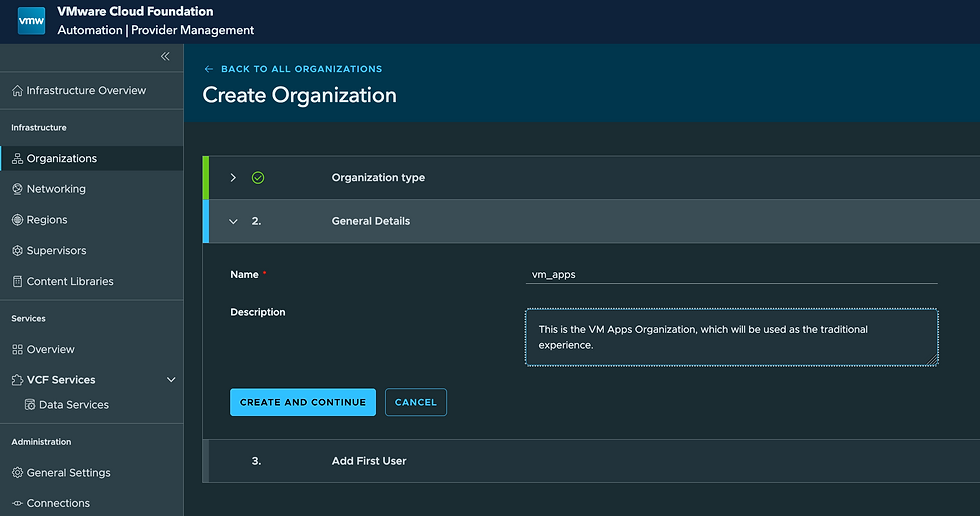
Provide a Name and Description and click CREATE AND CONTINUE.

Add a user and provide the Roles you'd like, then select ADD USER AND FINISH.

The vm_apps Organization has now been created, providing us with the traditional experience supporting VMs (not requiring vSphere Supervisor Services).
To access this Organization, go back to the login page and select vm_apps from the dropdown and login with the user you just created.
Upon login you'll be presented with the familiar VCFA 8 experience.

You can now go to the Infrastructure tab and create your vCenter integration.
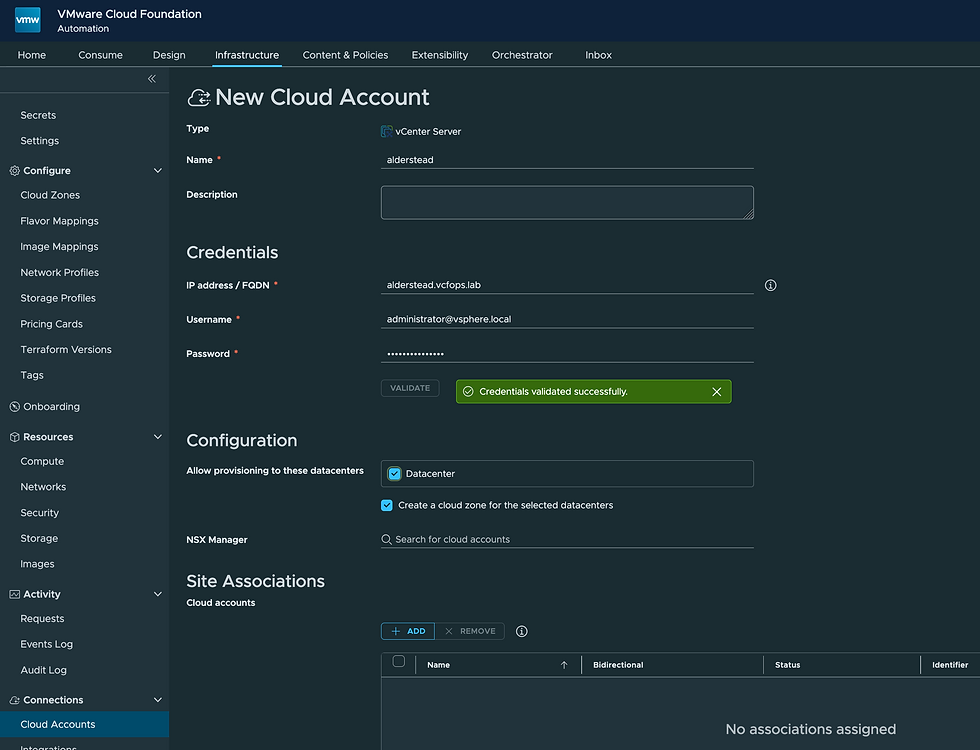
Once validated you can save it.
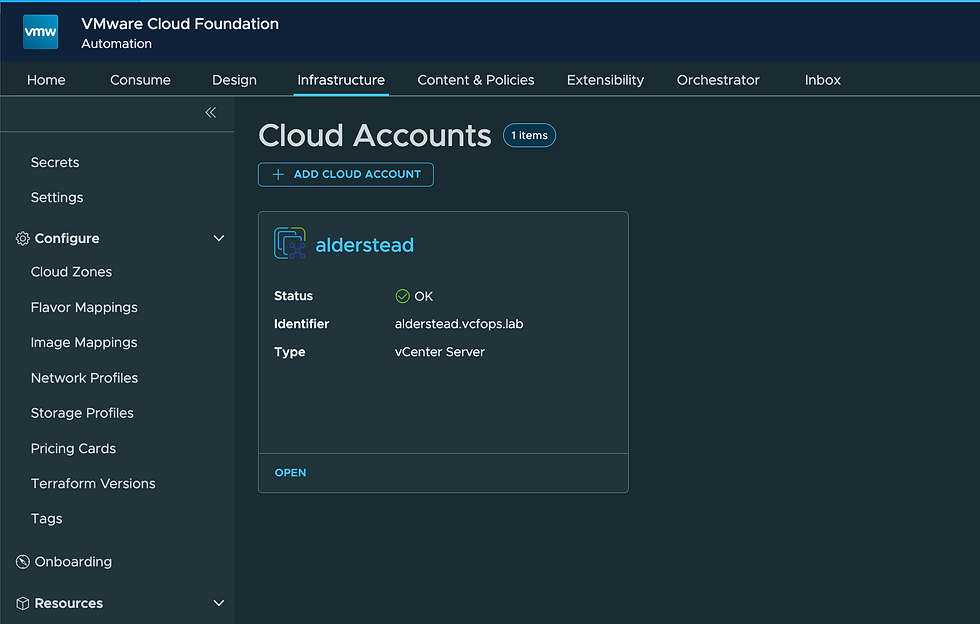
You can also add the embedded Orchestrator as an Integration.

You can now add Projects, Image Mapping, Blueprints, and more. Hope this was helpful!


Comments