VCF Automation Blueprint Input Options

In our last blog we used the VCF Automation Quickstart to guide us through creation of our first Template/Blueprint. I'd like to take that Template/Blueprint and expand on it, first by allowing the user to input a few things. Let's go.
If you recall, our original Template/Blueprint looked like this.

When published to the Service Broker Catalog it looks like this.

I'd like to make this a bit more robust:
Allow the user to select Cpu Count up to a maximum and provide a default.
Allow the user to select Total Memory up to a maximum and provide a default.
Allow the user to select an IP from an IP Block
Back in Assembler - Design we can see the YAML Code, and inserting a new line to the cpuCount input gives us some options.

Let's first clone our original Template/Blueprint and make all changes there.

While will give us this.

Let's edit the Windows 2022 VM Template/Blueprint to prompt the user for vCPU and Memory, with some options, defaults, minimums, and maximums.

We can test it be selecting TEST bottom left.

Clicking each dropdown gives us the options we enumerated in the YAML.
Click TEST to test the Template/Blueprint.

The test was successful, indicating the YAML is good. If you recall, we had an IP Block we were using in this case: 192.168.135.190 - 192.168.135.199. Let's give users the option to select one from a dropdown.

As you can see I've enumerated our IP Block and attached it to the VM at the bottom. Let's test it.

Click TEST to see if it works.

Much more we could add to our Template/Blueprint, but this is a good start. Let's version it by clicking VERSION bottom left.

I gave it a Description, Change log, and checked the box to release it to the Service Broker Catalog. Click CREATE. Back on the Service Broker Catalog we'll now see our Windows 2022 VM Template/Blueprint.

Let's see if it works, click REQUEST.
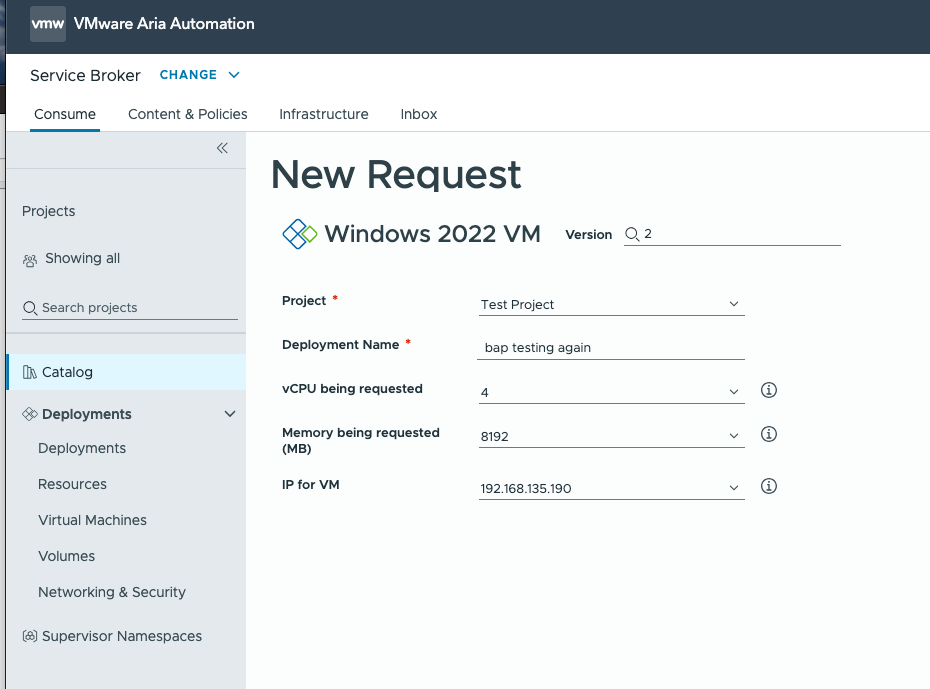
We can watch the progress here.

We can see the VM being deployed over in vCenter.

Once completed in Service Broker it will look like this.

Over in vCenter it'll look like this.

This is just an example of what we can do to enhance the Template/Blueprint created by the Quickstart workflow. Next time we'll explore naming conventinos and more, hope this was helpful!

Comments