VCF Automation Custom Forms

I've been building VCF Automation Blueprints lately, they present like this in the Service Broker - Consume - Catalog. All screenshots here are from VCF Automation 8.18.1.

Selecting the Generic VM tile gives us this.

While this is fine, I wanted a bit more: additional text, more descriptive information bubble text, radio button options, and more. How to do this? Custom Forms!
I think of Custom Forms as smart skins on Blueprints, a way to make things look a bit different. Go to Service Broker - Content & Policies - Content and you'll see your imported Blueprints.

Selecting the three dots next to the Blueprint you'd like to adjust gives you this.

Selecting Customize form gives you this.

You can now drag Generic Elements from the left hand pane over to the canvas and configure them in the right hand pane. At the top, I added a link to what Projects are.

The Values tab on the right is where you configure the linked URL.

I added simple Text next to the Deployment Name.

I also bound the Deployment Name field to the VM Name (shortname) field such that it's auto-generated when the VM Name (shortname) is completed.

I added simple Text next to the VM Name (shortname) field, but also put a regular expression on the field such that a user can't use a "." in their VM Name.

The vCPU being requested and Memory being requested (MB) just have text fields next to them giving the user a bit more information.
I configured an Information Bubble for the IP of VM field, giving the user more information on the field itself. You can configure Information Bubbles for any field in your Custom Form.

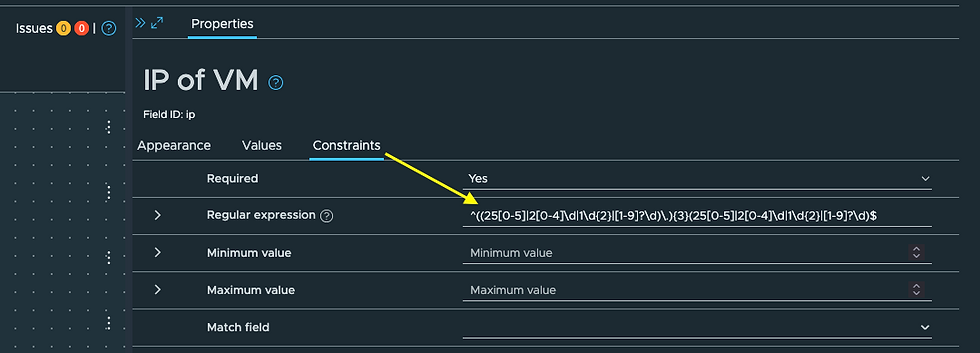
I'm also using a Regular Expression on the IP of VM field to ensure the user enters a proper IPv4 IP address.
Finally, I wanted to use a Radio Group presentation of the OS for VM field.

I've also bound the Value Field to the OS for VM Canvas Field.

Once complete click ENABLE and SAVE.

Back in Service Broker - Content & Policies - Content you'll now notice the Enabled Custom Form.

Now if we go request a Generic VM from Service Broker - Consume - Catalog we have this.

A much richer experience for the end-user, providing documentation, instruction for the user, even guardrails around input errors. Thanks to my pal Dale Hassinger for pointing out a couple things in review of this blog. VCF Automation Custom Forms are powerful, hope this was helpful!


Comments