vSphere Tags and Custom Attributes in VCF Operations

We've discussed vSphere Tags and Custom Attributes a couple times before:
Both are very powerful, yet quite different in terms of how they present in VCF Operations. Let's have a look, all screenshots here are taken from VCF Operations 9.0.2.
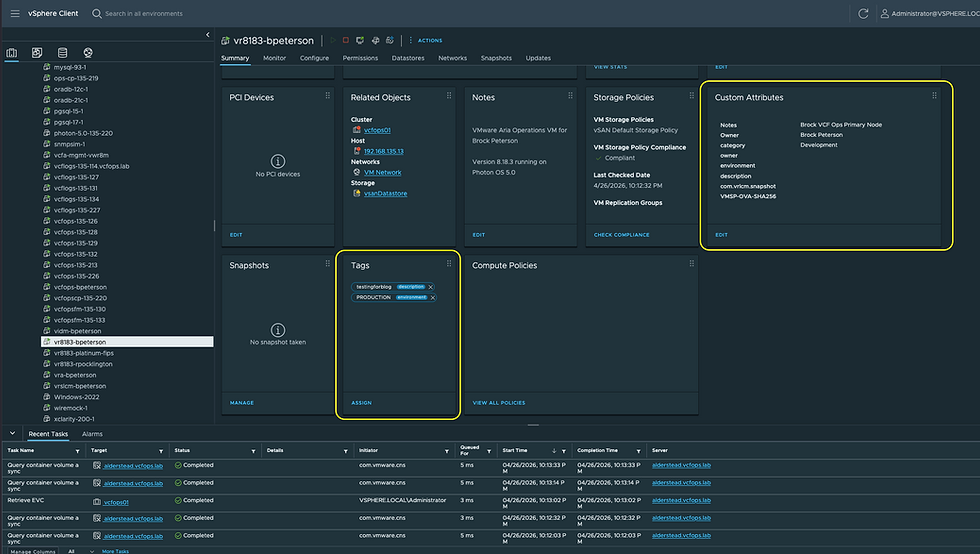
Here is a VM in my lab with both Tags and Custom Attributes on it. Over in VCF Operations, they look like this.

The Properties themselves look like this.
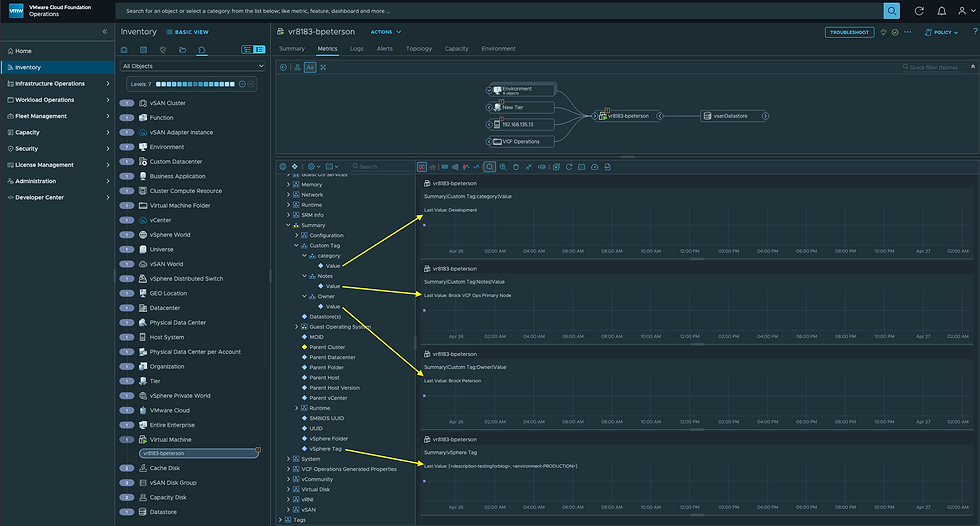
You'll notice the vSphere Custom Attributes show under Summary - Custom Tags and show as key:value pairs. However, the vSphere Tags which show under Summary - vSphere tag, concatenate both Tags together into a string. This is why I prefer using vSphere Custom Attributes to Tags. For example, if you're using them in a View, they'll look like this.

As you can see the vSphere Custom Attributes show quite nicely because they are presented in key:value pairs, whereas the vSphere Tag is just a long string.
Now, if you're creating VCF Operations Custom Groups based on vSphere Tags or Custom Attributes you have another option.

You could use the VM Properties to define your Custom Group, but here you'll notice there is an addition option in our dropdown called Tag. This represents the vSphere Tags on the VM as shown on the VM Summary Page and here.

These aren't usable in Views, but they are usable in Custom Groups, which can come in handy if you're filtering on vSphere Tag key:value pairs, especially multiple. For example, here I'm creating a Custom Group of VMs based on two vSphere Tags.

Which gives me the VMs I wanted.
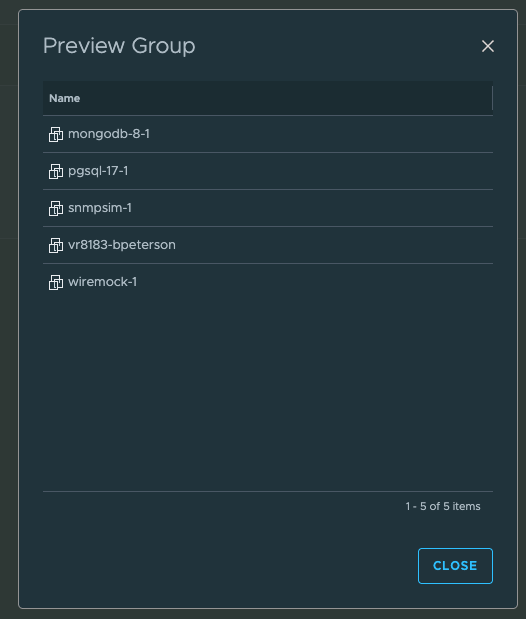
These are the five VMs in my lab with vSphere Tags on them.

So, as you can see there are ways you can use both vSphere Tags and Custom Attributes in VCF Operations. I hope this was helpful, enjoy!


Comments