Applying the latest VMware Aria Patches

This past week we dropped the latest versions of the VMware Aria Suite:
I'm running the following in my lab:
VMware Aria Operations 8.18.6
VMware Aria Operations for Logs 8.18.6
VMware Aria Suite Lifecycle 8.18.0 Patch 7
VMware Aria Automation 8.18.1 U4 (Patch 4)
Let's apply the updates! As indicated in the ASLCM Release Notes, we'll start by updating vIDM 3.3.7 Patch CSP-102457. We've already done this and detailed it here. If you've applied ASLCM 8.18.0 Patch 7 you've already done this.
Next let's apply ASLCM 8.18.0 Patch 8, which you can get here. I'm currently at 8.18.0 Patch 7, as shown on the About page.

Once downloaded, upload it to /data on your ASLCM VM. After that, load ASLCM 8.18.0 Patch 8 via Lifecycle Operations - Settings - Binary Mapping - Patch Binaries - ADD PATCH BINARY.

Select ADD PATCH BINARY, give it the Source Location of /data then select your recently uploaded Patch 8.

Click ADD.

You can follow along here if you'd like. Once complete go to Lifecycle Operations - Settings - System Patches.

From there select NEW PATCH top right.

Select the recently uploaded Patch 8 and click NEXT.
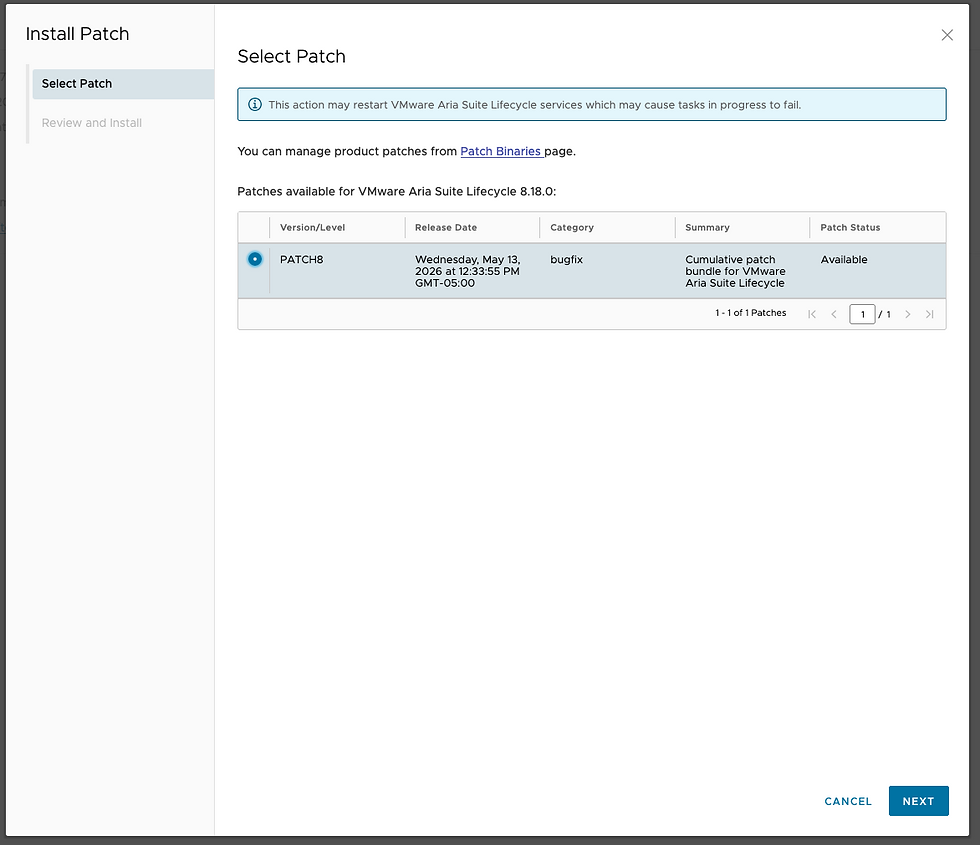
Then click INSTALL.

Follow along here.

Once done, the updated About page should look like this, it took about 15m.

Next we'll update Operations and Logs to 8.18.7. Download the 8.18.7 binaries for both here. Once downloaded, upload them to /data on the ASLCM VM. Then we load them for application via Lifecycle Operations - Settings - Binary Mapping - Product Binaries - ADD BINARIES.

You can watch progress here.

Once done, we can apply them via Lifecycle Operations - Environments. Select your Environment and go to the tab you want, we'll do Logs first here.

Select PROCEED.

Select 8.18.7 in the Product Version drop down and click NEXT.

Selet Take product snapshot and click NEXT.

Select RUN PRECHECK.

Confirm all is well and click NEXT.

Then click SUBMIT.

You can watch progress here.

Once complete, it will look like this.

Back on your Environment tab, it will show the new version.

Finally, the About page in Logs itself will now show this.

Next let's upgrade Operations to 8.18.7 via the Operations tab in your Environment tile.

Click UPGRADE.

Click PROCEED.

Confirm 8.18.7 is the selection in the Product Version dropdown and click NEXT.

Click RUN ASSESSMENT.

Check the assessment by clicking VIEW REPORT, confirm all is well, and click NEXT.

Select Take product snapshot and click NEXT.

Run the precheck by clicking RUN PRECHECK.

Confirm all is well and click NEXT.
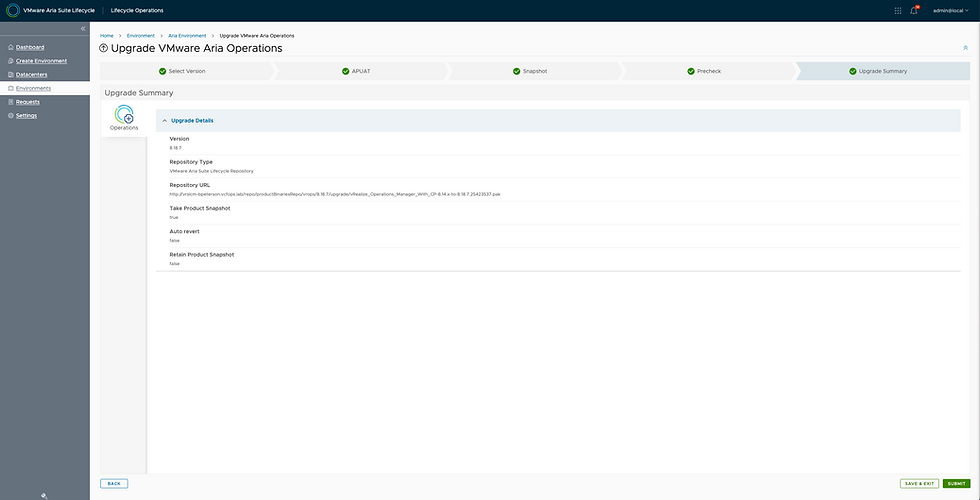
Review and click SUBMIT.
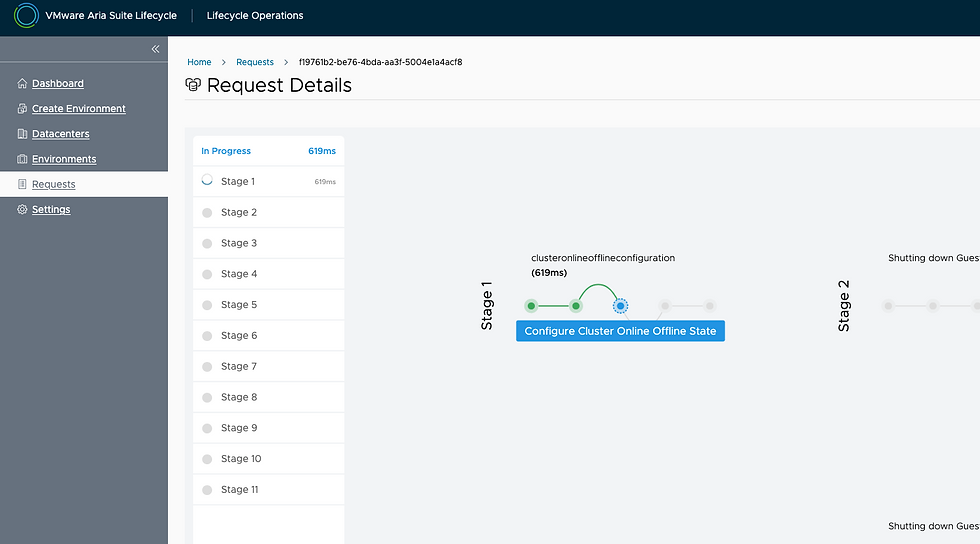
You can watch the progress here. It did stall out at Stage 8, I had to log into the Operations admin UI, enable SSH, then continue along. Once done it will look like this.

Back on the Operations tab of your Environment it will show the udpate.

The Operations About page will show like this.

The last remaining upgrade is Automation 8.18.1 Patch 5 which you can get here. There is a helpful KB here as well, be sure you run the vracli command detailed in the KB before you apply the patch in the UI.
Once downloaded, upload it to /data on the ASLCM VM. Then load it via Lifecycle Operations - Settings - Patch Binaries - ADD PATCH BINARY.

Select the patch you just uploaded and click ADD. One complete it will be available to be applied. Go to the Automation tab of your Environment tile and select the ... next to EXECUTE SCRIPT.

Select the patch you just uploaded (Cumulative Update 5) and click NEXT.

Click RUN PRECHECK.

Confirm all is well and click NEXT.
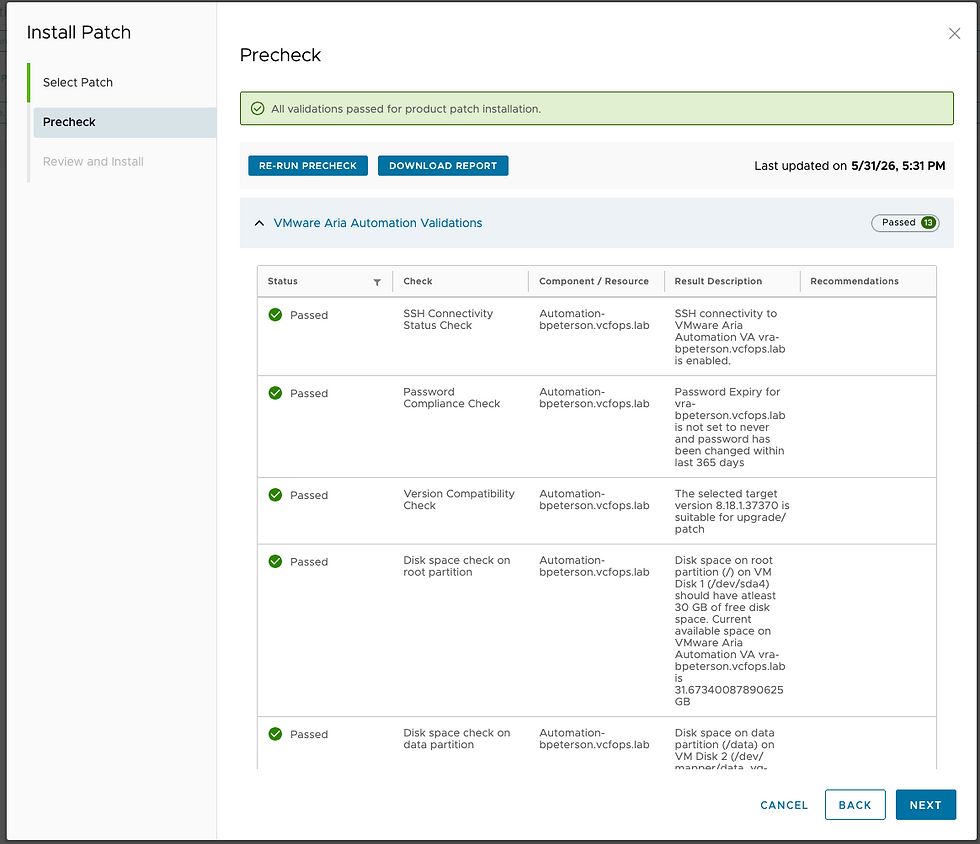
Review and click INSTALL.

Watch progress here.

Once complete you can confirm it was applied by running vracli version patch on the vRA VM.
root@vra-bpeterson [ ~ ]# vracli version patch
Installed patches:
24411566
24702833
24814205
24862833
25228700
25428648
As indicated in the KB, 25428648 indicates Cumulative Update 5 was applied. Hope this was helpful, enjoy!


Comments