Applying VCF 9.1.1 Express Patch 2 to your VCF Management Domain

In our last blog we detailed how to apply VCF 9.1.1 Express Patch 2 to your VCF Management Services. In this blog we'll go through applying the same to your VCF Management Domain. Let's go!
Last time we upgraded our VCF Management Services as shown here.

If you remember we used the VCF Planner to help with this, we are now on PHASE 2.

To get started on the Management Domain upgrade, confirm your Software Depot is connected.

Then go to the VCF Instance you want to apply the patch to.

First, we'll upgrade SDDC Manager. Click DOWNLOAD.

Once the SDDC Manager binaries have been downloaded we'll go get the other necessary binaries via Binary Management - PATCH BINARIES.
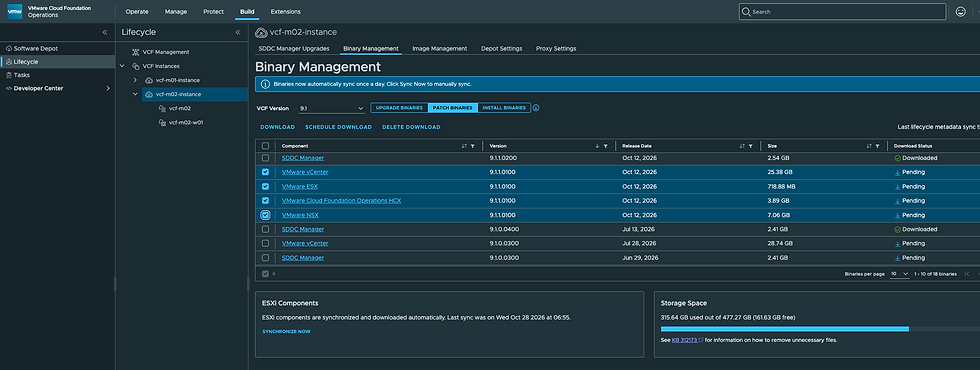
Select the relevant patches and DOWNLOAD.

Once done it'll look like this.

Next go to the VCF Instance hosting SDDC Manager - PLAN COMPONENT UPGRADE.

Select the Target Version for the updates.

Click NEXT.

Dealers choice here, but I've chosen Sequential Upgrade to apply all patches. Click NEXT.

Review and click SUBMIT PLAN.

We now have an Upgrade Plan we can execute. Let's start by running the prechecks. Click RUN PRECHECK.

Click RUN PRECHECKS.

Once done it will look like this, notice I have three errors, let's check them.

These are errors indicating the ESX Hosts aren't ready to be put into Maintenance Mode, due to VMs being pinned in this lab, but we'll worry about that later. Let's continue with the SDDC Manager update.

In the VMware SDDC Manager 9.1.1.0200 tile click UPGRADE NOW. You could also schedule it for a later time with the SCHEDULE button.

To get more details click VIEW UPGRADE ACTIVITY.

Once done it will show like this in the Upgrades History tab.

Clicking on VIEW DETAILS provides details, including how long it took (about 20m).

Back on the Upgrades tab we can continue with the next step in our plane, which is to upgrade NSX Manager Nodes. Let's first run prechecks on it by clicking RUN PRECHECKS and then VIEW DETAILS to watch the progress.

VIEW DETAILS will show this.

Once done it will look like this.

Notice the 1 of 5 steps completed, which will provide details if you click on it.

Next up in our Plan is NSX Manager, which you can run prechecks on by clicking RUN PRECHECK. Once it completes successfully upgrade by clicking UPGRAGE NOW.

Once complete it will show like this in Upgrades History.

Back on the Upgrades tab, it will show like this.

Clicking the 2 of 5 steps completed link will show this.

Next up is vCenter.

Click CONFIGURE.

Here you can choose between two options:
vCenter Reduced Downtime Upgrade (a new vCenter is deployed)
vCenter Regular Upgrade (in-place upgrade involving downtime)
I'm upgrading a lab so I've selected vCenter Regular Upgrade and clicked NEXT.

Ensure you have a backup and click NEXT.

Review and click FINISH.

Back up on the main Upgrade page, click UPGRADE NOW.

You can check progress any time by clicking VIEW STATUS.

Which will provide details on the upgrade process. Once done it will look like this.
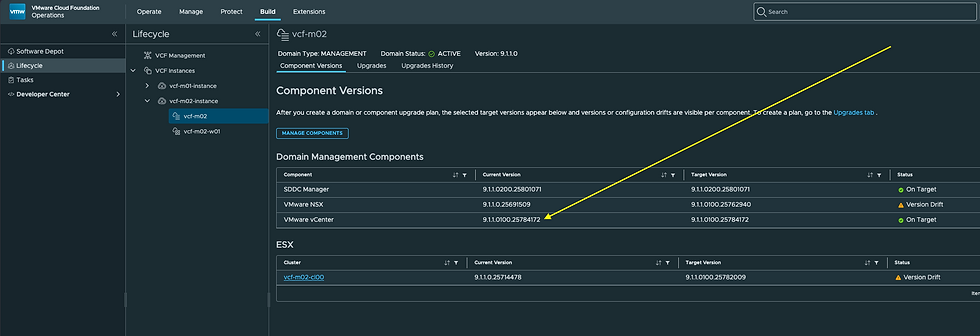
Back on the Upgrades tab the 3 of 5 steps completed link you'll see this.
Back to our Upgrade Plan, next up are the ESX Hosts.

Click CONFIGURE.

We have the option to upgrade ESX Hosts in batches (in parallel or sequentially) where batches can be all ESX Hosts in a Cluster, a subset of ESX Hosts, or stand-alone ESX Hosts. Click NEXT.

I'm going to select All Clusters. Click NEXT.
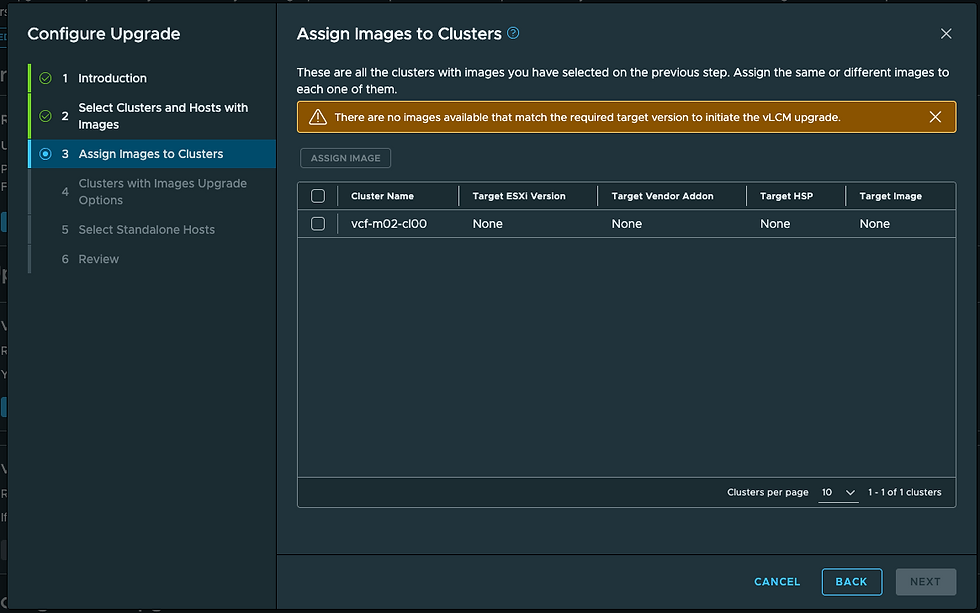
Next we select the Cluster, the Target Version, and more. As you can see I don't yet have any ESX Host Images to use (see the orange bow). Let's log into vCenter and create them.

From the hamburger dropdown top left go to Lifecycle Manager.

Select CREATE IMAGE.

Define the Image Name, select the ESX Version in 9.1.1.0200 (which is actually 9.1.1.0100.25782009), select any necessary add-ons, then click VALIDATE.

The Image is valid, click SAVE.

We can now see our new Image. Back in VCF Operations Lifecycle - Image Management we can import the new Image.

Click IMPORT IMAGE.

Select the Management Domain vCenter from the vCenter dropdown, select the radio button next to the Image we just created, them click IMPORT.

In the Tasks tab you can watch progress.

Once complete it will look like this.

Back on the Image Management tab we can see our imported Image.

Back on the Upgrades tab.

Select ASSIGN IMAGE.

Select the radio button next to the new Image and click ASSIGN IMAGE.

We now have the target ESX Version we want, click NEXT.

Select the options you want and click NEXT.

Select any standalone ESX Hosts you might have and click NEXT.

Review your selection and click FINISH.

Click UPGRADE NOW.
Click VIEW Status to watch the progress.

Once done it will look like this. Back on the Upgrades tab you'll see this.
And we're onto the final step of our Upgrade Plan.

Click CONFIGURE.

Toggle the Enable NSX Edge Cluster Selection slider to green, select the relevant NSX Edge Cluster/s and click NEXT.

Click NEXT.

Review and click FINISH.

Click UPGRADE NOW.
Click VIEW STATUS to view upgrade progress.

Once done it will look like this.

Back on the Component Versions tab you can see were at our Target Versions! At this point we've finished applying 9.1.1.0200 to the VCF Management Domain, next up will be the Workload Domain. That'll be the next blow, hope this one was helpful!

Comments