Deploy VMs via the VCF Automation API

We've discussed the VCF Operations API and the Operations for Logs API several times over the years here, but haven't touched on the VCF Automation API. Today we're going to explore it. All screenshots here are taking from VCF Automation 8.18.1 Update 4.
First off, the VCF Automation 8.18.1 API can be found at https://yourvrafqdn/automation-ui/api-docs and looks like this.

You'll notice tiles for many endpoints here, but we'll start with Identity, which will give us authentication options. In the LoginController section you'll notice POST /csp/gateway/am/api/login which will allow us to authenticate and secure a token.

The Request Body requires input, I configured mine like this:
{
  "username": "vidmadmin",
  "password": "your_password_goes_here",
  "domain": "System Domain",
  "scope": ""
}
Upon execution I get a token.

I now have a token to use for all subsequent calls. Back on our main API page you'll notice tiles for content, let's try requesting a Blueprint from the Service Broker Catalog.

Catalog looks like this.

Click the Authorize button to authenticate.

Here you will use the Token you previously captured. Once authenticated you now have the ability to run calls. For example, we can run a GET /catalog/api/items to get all Catalog Items.

Once executed (notice I adjusted the $top input to 11, so I could see all items, the default is 1) you'll have your Catalog Items.

The return here should match what you have in the Service Broker UI. You'll notice each Catalog Item has an id, which we can use in GET /catalog/api/items/{id} to get more information about that particular Catalog Item.

Let's have a look at our Linux VM Catalog with the id referenced above.

The Response Body provides the details, including the necessary Schema fields for a request of this type. We'll perform a POST /catalog/api/items{id}/request to actually deploy this VM.

The Curl looks like this.
curl -X 'POST' \
  'https://vra-bpeterson.vcfops.lab/catalog/api/items/8ee58e5b-8f41-3794-b851-3fa86be3e4cd/request' \
  -H 'accept: application/json' \
  -H 'Authorization: Bearer your_token_goes_here' \
  -H 'Content-Type: application/json' \
  -d '{
  "inputs": {
    "ip": "192.168.135.191",
    "vmname": "brockp99",
    "os": "Rocky Linux 9",
    "vcpuCount": 4,
    "totalMemoryMB": 8192
  },
  "projectId": "eee6e66e-d407-44d8-a413-c42251e45088"
}'
Clicking Execute starts the request and provides the deploymentId and deploymentName.

Over in the VCF Automation Service Broker UI you can see the VM being deployed.
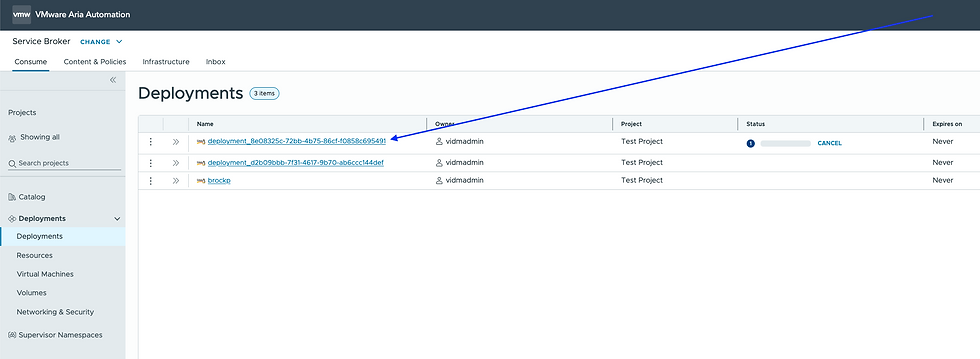
Once complete, your new VM is available in vCenter as well.

The VCF Automation API is powerful, hope this was helpful!


Comments