Fresh Deploy of Aria Automation 8.18.1

Updated: Aug 22, 2025
To go along with my fresh deployments of Operations and Operations for Logs, I wanted a fresh deployment of Automation, here goes.
I downloaded the VMware Aria Suite Lifecycle 8.18 Easy Installer for Aria Automation 8.18.1, you can get it here.

Once downloaded, I double clicked the .iso to mount it. The documentation can be found here.

After clicking Open I was presented with the contents.

Drill down to find the installer which is located here if you're installing from a Windows VM.

Double click installer and we're off!

Now we'll run through the wizard, step 1 just tells you what you're installing.

Step 2 presents the EULA and CEIP, you can opt out of the CEIP if you want.

Step 3 asks for vCenter details, this is where you'll deploy vRA (and vRSLCM and vIDM).

Step 4 asks for a Datacenter or VM Folder you'd like to deploy into.

Step 5 asks for a Cluster in that Datacenter.

Step 6 asks for a Storage/Datastore destination.

Step 7 requests network information.

Step 8 asks for a password, which will be used for ASLCM root/admin, Aria Automation root, and vIDM root/admin/sshuser/configadmin (user defined later).

Step 9 asks for your ASLCM information: VM name, IP, and FQDN.

Step 10 requests your vIDM information.

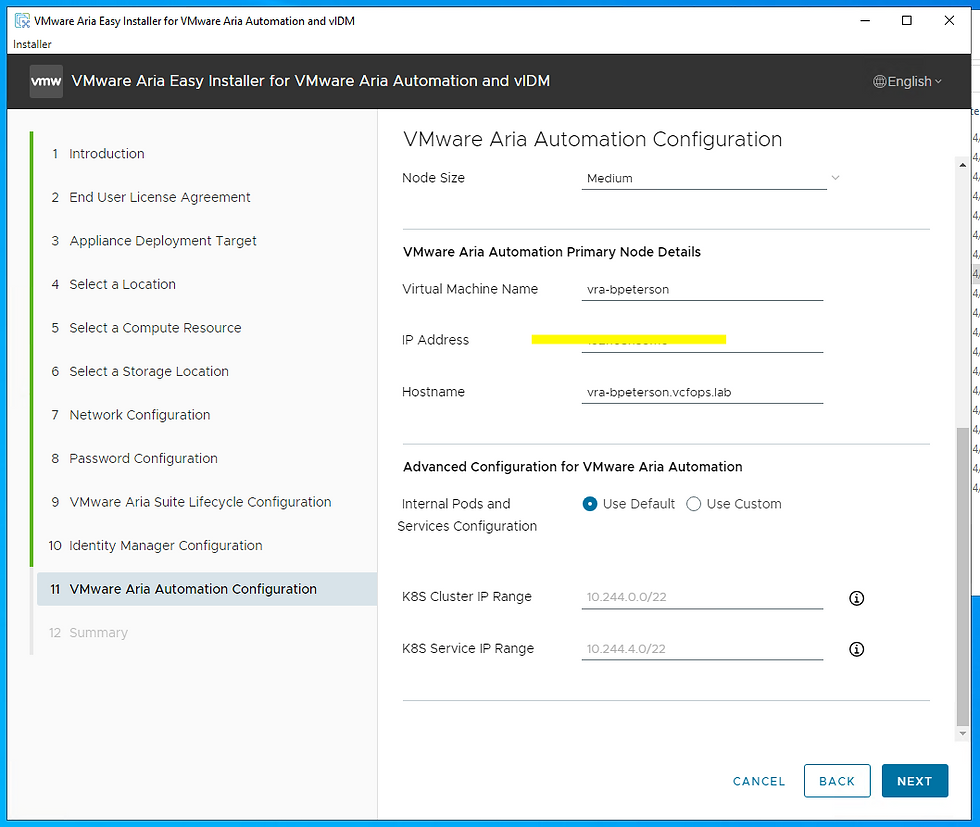
Step 11 is your Aria Automation information: node size, VM name, IP, FQDN, etc.
Step 12 is a review of your input, confirm things look good and click SUBMIT!

Your installation is now in progress!

I watched along in vCenter as the VMs were deployed, as soon as ASLCM was up and running I logged in to watch the progress.

After ASLCM, vIDM was deployed. After that, Aria Automation was deployed. Again, I watched it progess in ASLM.

After about 30m or so it was done!

Back on my Windows VM, where I ran the Easy Installer, it also showed as done.

I already confirmed I could get into ASLCM, so next went to vIDM to confirm I could log in there (using configadmin and the password I set earlier).
Finally, I went to Aria Automation to confirm I could get in and again used the configadmin credential and password I set earlier.
We're up and running! Much more to do here, but this get's us started! I did run into an issue the first time I tried this: ASLCM deployed fine, vIDM deployed fine, but vRA didn't, it was failing on first boot. I logged into the Web Console and noticed reverse DNS lookups weren't working, so had to add PTR Records in my DNS server, this KB helped.


Comments