VCF Automation Image Mappings

We have VCF Automation deployed (in this case 8.18.1) and would like to start giving the user OS options upon request. How can we do this? Image Mappings!
Log into VCF Automation, go to Service Broker - Infrastructure - Configure - Image Mappings.

Click NEW.

Give your Image a name, select an Account/Region to pull from, then select the Image to map from the dropdown of Images. This will be the list of Templates as shown in vCenter.
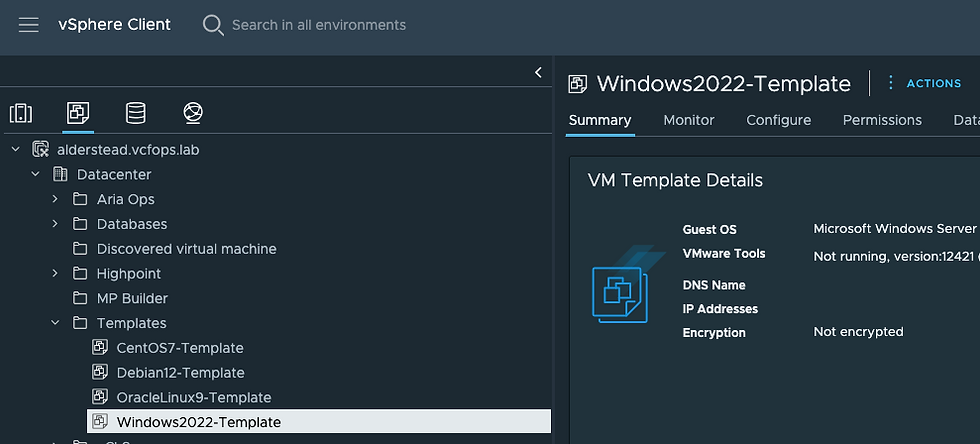
I've created 4 Image mappings, one for each available OS.

Next, I've created a new Template/Blueprint using these Images.

Testing this runs fine.

Then I released it to the Catalog.

Over in the Service Broker Catalog we now see the Blueprint.

Let's request one.

Once done it'll look like this.

Over in vCenter you can see your new Windows 2022 VM.

Let's try another one, this time a Debian Linux 12 VM.

Once complete, over in vCenter we can see our new Debian Linux 12 VM.

Use VCF Automation Image Mappings, they are powerful!


Comments