VCF Operations and DX Operational Observability

We've discussed VCF Operations Alert Notifications many times before:
I recently discovered DX Operational Observability (DX O2), Broadcom's AI Ops and Observability platform which can help with Alert correlation and enrichment. DX O2 can receive Alerts from just about anything in most every format, which got me thinking about sending Alerts to it from VCF Operations. Let's do it!
The first thing to do is create a Webhook Template in VCF Operations for your Alerts. I cloned the Default Webhook Template and created one called DX O2 Webhook Template.

The details look like this.
The payload itself looks like this:
{
"startDate": "${CREATE_TIME}",
"updateDate": "${UPDATE_TIME}",
"cancelDate": "${CANCEL_TIME}",
"resourceId": "${RESOURCE_ID}",
"adapterKind": "${ADAPTER_KIND}",
"resourceKind": "${RESOURCE_KIND}",
"resourceName": "${RESOURCE_NAME}",
"Health": "${OBJECT_HEALTH_STATE}",
"impact": "${ALERT_IMPACT}",
"criticality": "${ALERT_CRITICALITY}",
"alertName": "${ALERT_DEFINITION}",
"symptomName": "${SYMPTOMS}",
"alertId": "${ALERT_ID}",
"status": "${ALERT_STATUS}",
"recommendations": "${ALERT_RECOMMENDATIONS}",
"alertURL": "${LINK_TO_ALERT}"
}
You'll notice I added symptomName because this is what contains the details for the Alerts I'm going to start sending to DX O2, but you can add whatever variables you'd like.
Next you'll need to create the VCF Operations Outbound Plugin instance for DX O2.

Click ADD and create one using the Webhook Notification Plugin, mine looks like this.
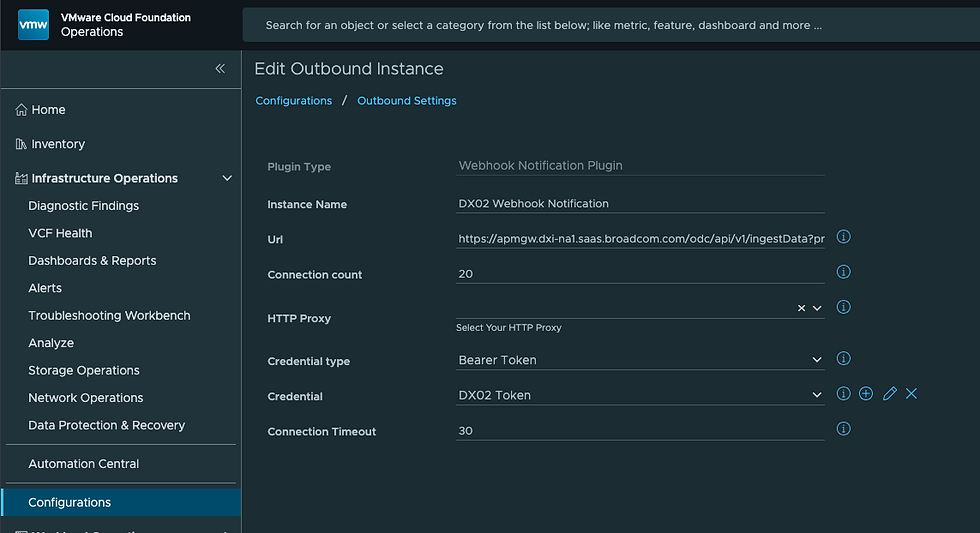
I've given it a descriptive name and a URL I got from DX O2. In DX O2 go to Settings - Setup Integrations to get your Webhook URL.

Click Setup Integrations - Add - Standard Integration top right.

Give the Integration a Name and Product, the Webhook URL can be copied from the link top right.

This is the URL you'll use in the VCF Operations Webhook Plugin.

You'll also need a Bearer Token, which you can get from DX O2 here.

Once your DX O2 Bearer Token has been added to your Webhook Plugin, you can run a TEST to confirm your Plugin works.

Over in DX02 your test Alert will look like this.

Now, DX O2 needs to know what the VCF Operations Alert payload will look like. It will also need to map the VCF Operations Alert fields to DX O2 Alarm fields using JSONATA, mine looks like this.

Once you've created your Mapping Definition you can click the Play button top right to confirm it works, which mine does. The Show Samples Integration link is helpful in creating your Mapping Definition. My Mapping Definition is pretty straight forward, besides the alarmMessage, which I create based on contents of the symptonName being sent in.
{
"alarms": [
{
"alarmId": alertId,
"host": resourceName,
"hostname": resourceName,
"status": status,
"severity": criticality,
"alarmType": "VCF Operations",
"alarmMessage": $contains(symptomName, "guestfilesystem:") ?
"Filesystem Alert: " & $substringBefore($substringAfter(symptomName, "guestfilesystem:"), "|") & " at " & $substringBefore($substringAfter(symptomName, ": "), " >") & "%"
: alertName & " " & symptomName,
"alarmUrl": alertURL,
"entityId": resourceId,
"monitoringType": adapterKind,
"created": startDate
}
]
}
Lastly, you'll need a VCF Operations Notification Rule that uses your new Webhook Notification Plugin and Template, mine looks like this.
This will send the relevant VCF Operations Alerts over to DX O2. DX O2 will then transform that Alert into a DX O2 Alarm. In my case, I cleaned up the Alarm Message to look like this.

There are all sorts of other things we can do here, but we now have VCF Operations Alerts being sent to DX O2 for processing, correlation, enrichment, and more. For more information about Broadcom DX Operational Observability go here.


This is a solid walkthrough for piping VCF Operations alerts into DX O2—the payload structure and integration steps are really clear. I've been using Winzoria for similar alert aggregation work and it handles webhook payloads just as smoothly, might be worth checking out if you're exploring other observability options.
This looks like a useful integration, especially if you're already using VCF Operations and want a central place to correlate alerts from multiple systems. Sending alerts to DX O2 through a webhook makes it easier to enrich events and reduce noise before responding to issues. I found turbowinz casino while reading about this setup, and it seems like a practical approach for improving observability workflows.
Can we integrate VCF Operations with Jira like sending alerts to Jira?
We are using $SYMPTOMS in our Payload Template too but facing the issue that sometimes there is only the String „Symptom Set“. My thought is thats not working if multiple Symptoms are active on the alert. With one Symptom its working. Are you facing that behaivour too? Kind regards