Applying Aria Suite Lifecycle Manager 8.18 Patch 7

Aria Suite Lifecycle Manager 8.18 Patch 7 dropped last week, let's apply it! Log into the Broadcom Support Portal and get it here.

You will also need the preparation script provided here. Once both of these have been downloaded you can SCP them up to /data on your ASLCM VM.
First, run the script, mine looks like this.
root@vrslcm-bpeterson [ /data ]# ./prep-for-upgrade-lcm_1769078228716.sh
Checking for presence of /etc/pki/rpm-gpg/VMWARE-RPM-GPG-KEY ...
Checking for presence of /etc/pki/rpm-gpg/VMWARE-RPM-GPG-KEY-4096 ...
Removing 'noacl' entries from /etc/fstab ...
'/etc/fstab' is modified, please cross verify before proceeding to next step ...

Dumping '/etc/fstab' content to console ...

--------------------------------------------------------------------------------
#system mnt-pt type options,nosuid,nodev dump fsck
UUID=30c535e7-3d6a-46cc-91d0-77744125d73e / ext3 defaults 1 1
PARTUUID=029cf911-7a9b-468b-b7a0-4fd494e8db9b /boot ext4 defaults,nosuid,nodev,noexec 1 2
PARTUUID=e6ae4ddc-a2b4-4388-8795-8f1383a59dc4 /boot/efi vfat rw,nosuid,nodev,exec,auto,nouser,async 1 2
/dev/cdrom /mnt/cdrom iso9660 ro,noauto,nosuid,nodev 0 0
UUID=69e1c25a-ba0d-401b-8b9d-ecfa42e566a3 /data ext3 ,nosuid,nodev
UUID=2013f73c-9cf8-4741-9be1-601b26328bd3 /storage ext3 ,nosuid,nodev
UUID=07014b41-a56d-4f21-968d-f199bcee9d69 none swap sw,nosuid,nodev 0 0
UUID=7bc23fb7-1d5d-4239-9919-afd8006c7c45 /storage/alt_root ext4 ,nosuid,nodev
UUID=23218fd5-c254-479a-a316-3449dd1b497b /storage/lvm_snapshot ext4 ,nosuid,nodev
--------------------------------------------------------------------------------


*** All prep steps are done ***
Next log into the ASLCM UI and go to Lifecycle Operations - Settings - Binary Mapping - Patch Binaries and ADD PATCH BINARY.

You can watch it progress here.

Once done you'll see it here.

Now let's apply it, go to Settings - System Patches and select NEW PATCH.

Select NEXT.

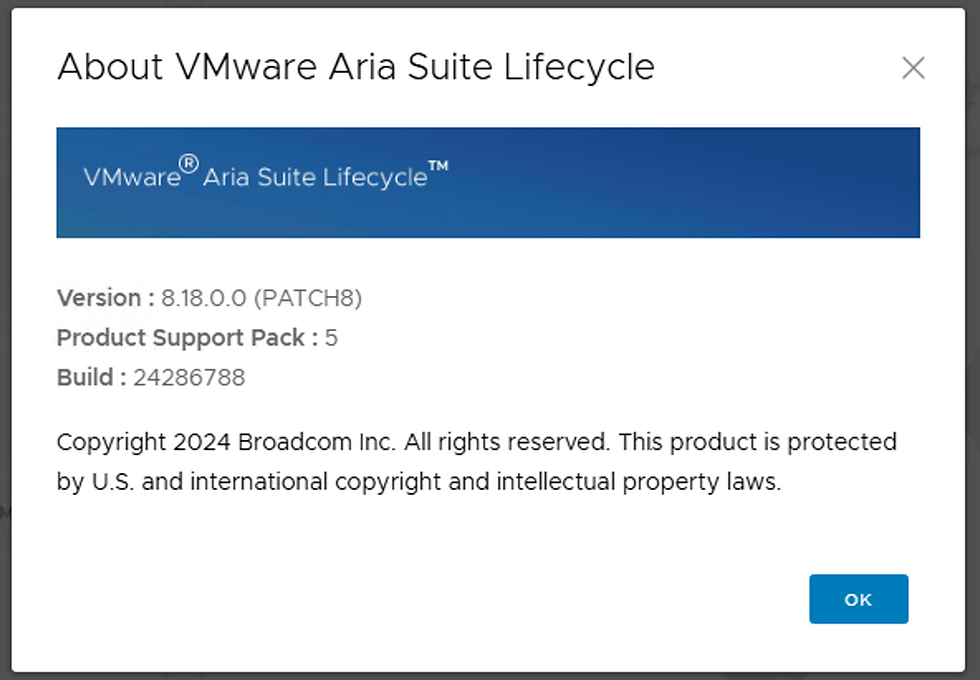
Select INSTALL, the install took about 15m and rebooted the VM. Once complete I logged into the ASLCM UI and confirmed the Patch was applied via the About page.

Hope this was helpful, enjoy!


Comments