Retrieving Passwords from VCF Operations Fleet Manager

Updated: Mar 9
We've discussed the new VCF Operations Fleet Manager introduced in VCF 9 a bunch already:
What I'd like to discuss today is how to retrieve a password from VCF Operations Fleet Manager, there are two ways to do this: one via the UI and the other via the API. As you probably already know, you can enable the Fleet Manager UI by SSHing into the VM and running the following:
touch /var/lib/vrlcm/UI_ENABLEDOnce the UI has been enabled you can login, go to Locker (top right) then Passwords. Find the Password Alias you want to see the password for, select the three dots on the far right and View Password.

It will then prompt you for the Fleet Manager VM root password before showing you the password you requested.

Enter your root password then click VALIDATE and VIEW PASSWORD.
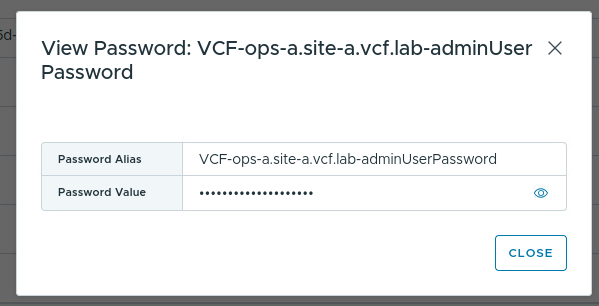
Here you can click the eyeball icon to see your password in clear text.
Another way to do find passwords is via the Fleet Manager API. Launch the Fleet Manager API from VCF Operations - Developer Center - APIs and SDKs.

Once there you'll authenticate with your Base64-encoded admin@local credentials like this, which we've detailed here.

Once authenticated go to the private-internal-api surface.

Next run a GET /lcm/locker/api/v2/passwords to get the passwords.

My Response Body looks like this.

Of course there is much more if you scroll, but I'm trying to find the password for the admin credential on my VCF Operations VM with a certain IP. Which corresponds to this credential back in VCF Operations Fleet Management Lifecycle.

We need the vmid in order to retrieve the password corresponding to the password alias in question.
Next we will run a POST /lcm/locker/api/passwords/{vmid}, using the vmid from above.

Similar to when using the UI, requesting the password requires you to pass the Fleet Manager VM root credentials, which we do by adding the following to your request.
{
	"rootPassword": "fleetmanagerrootpasswordgoeshere"
}
Below that you provide the vmid for your password alias (the one you are looking for) like this.
Click Execute to run it and you'll have your password in clear text.

Hope this was helpful, enjoy!


Comments